Templates SMS
This tab is intended for adding new SMS templates, as well as for editing and deleting existing templates.
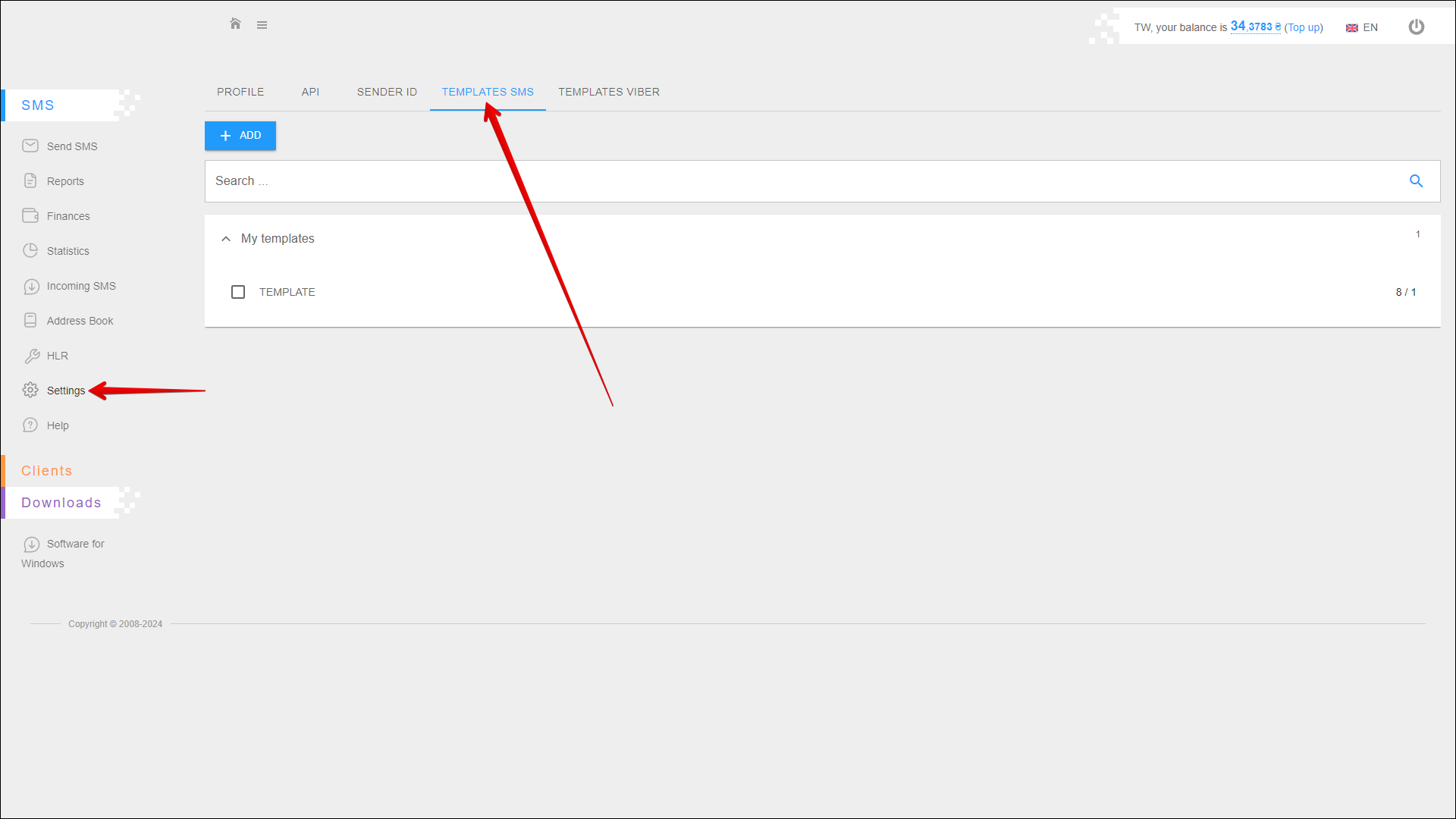
To open this tab, select SMS → Settings in the side menu and select TEMPLATES SMS tab.
Adding a new template
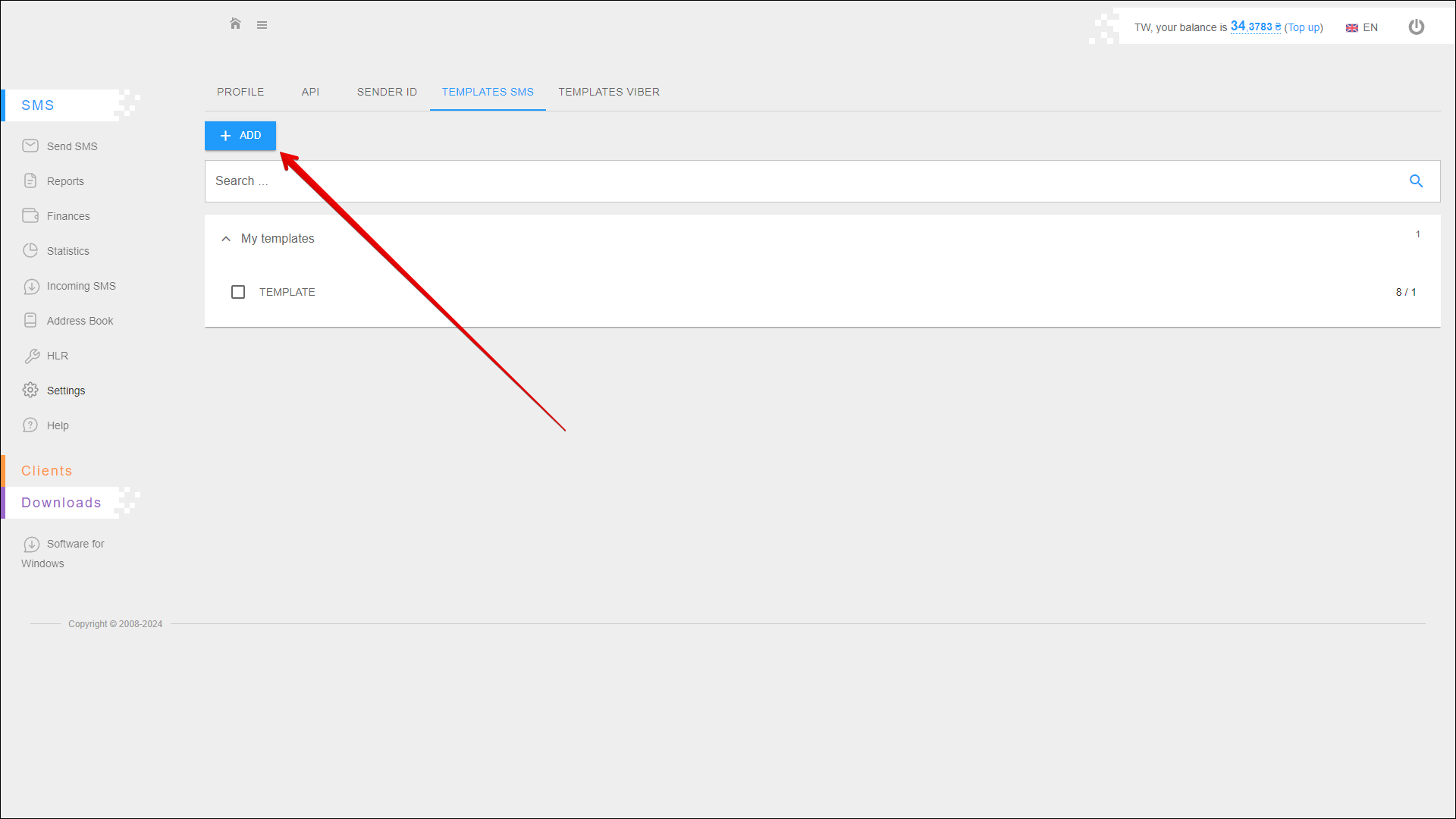
To add a new template, click the + ADD button in the upper left corner of the page.
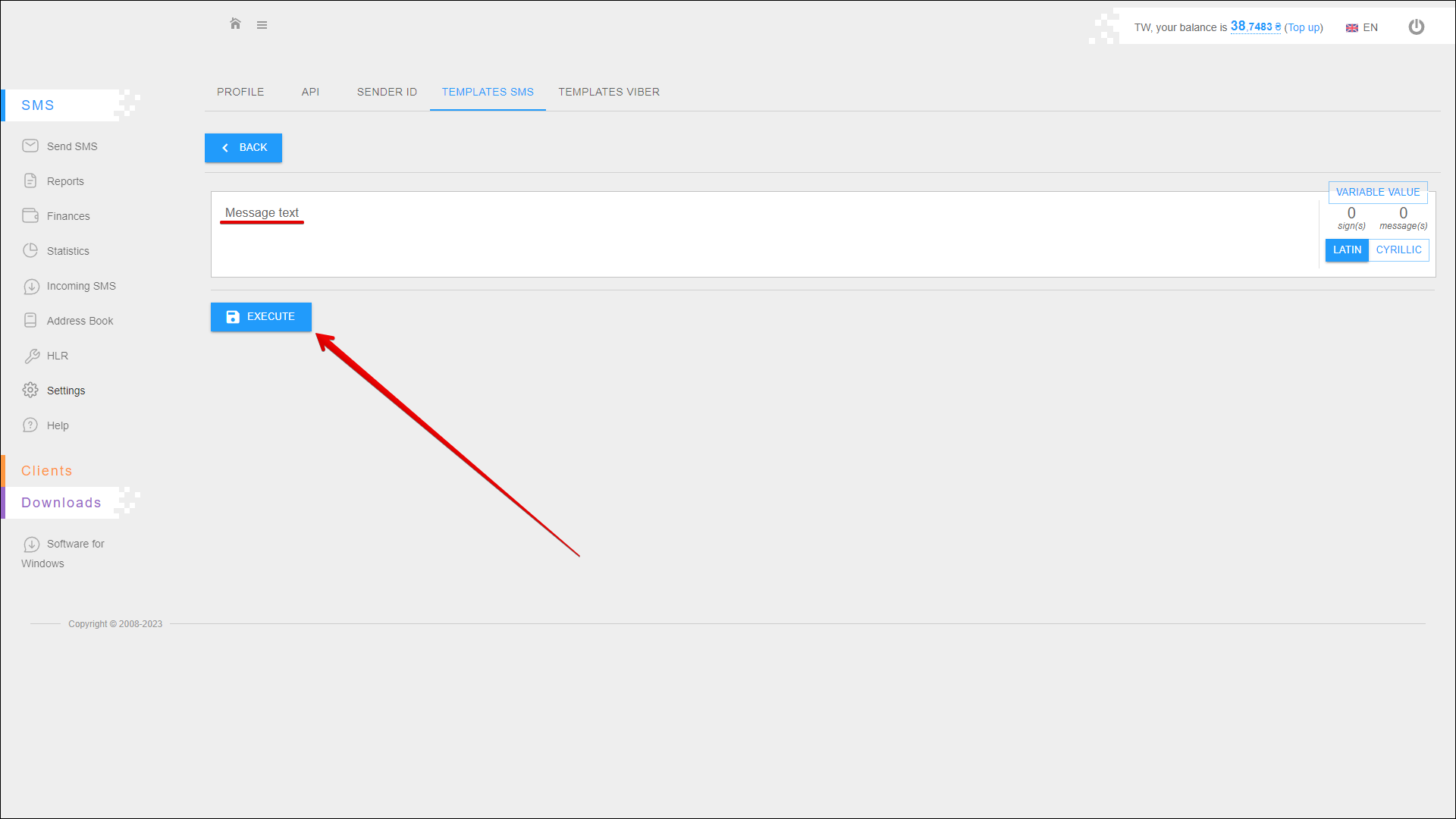
Enter the message text (sign limits per message: 70 for cyrillic and 160 for latin) and press EXECUTE to create a template. The new template will be displayed in the list.
Additional options
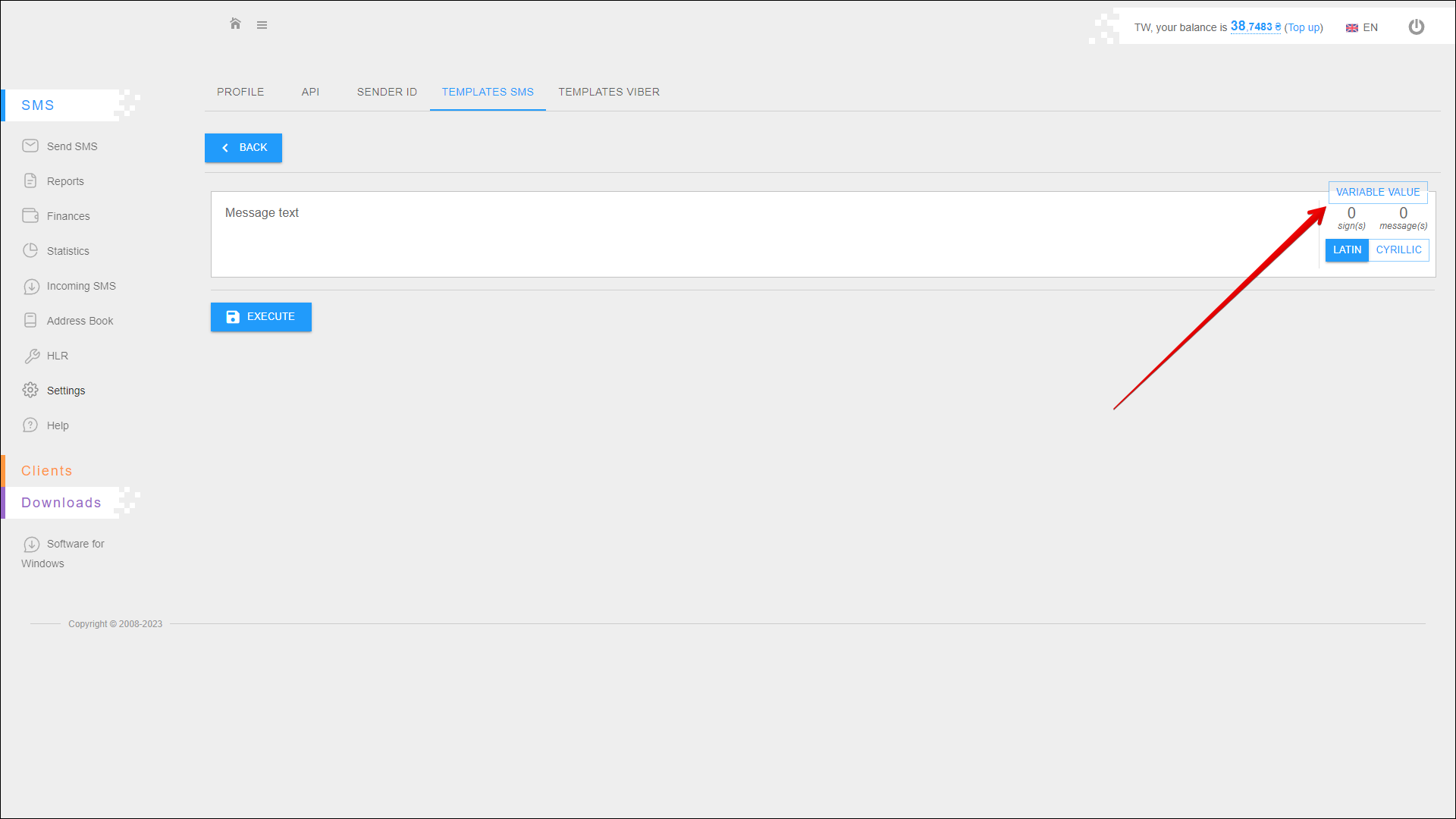
Use the VARIABLE VALUE button to add a variable to the message text. This feature allows you to insert a name or any other data for each recipient in a mass mailing.
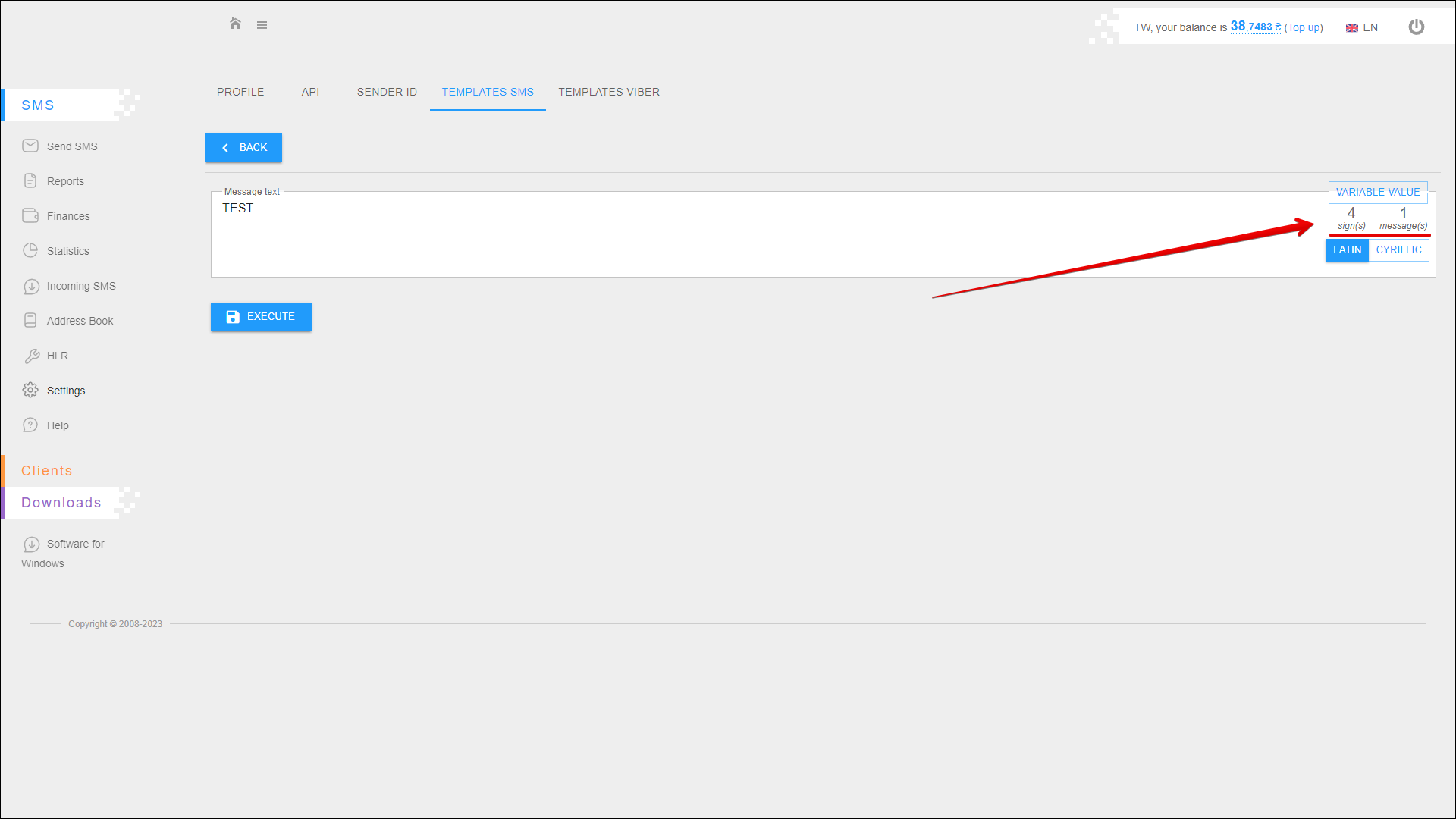
The right side of the message text input field shows the number of entered signs and the number of messages required to send the entered text.
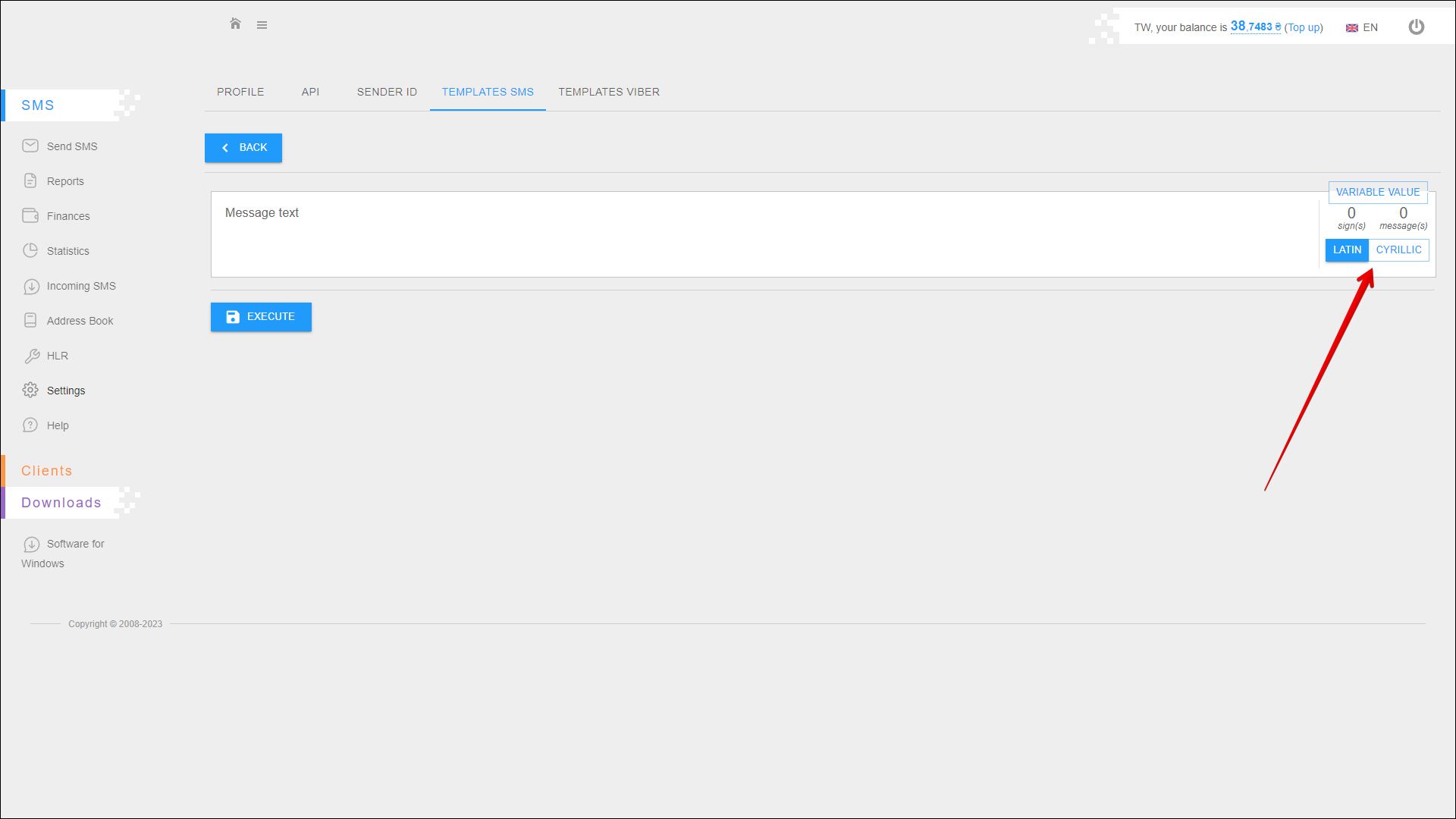
You can also switch the message text from cyrillic to latin and vice versa using the LATIN/CYRILLIC selector.
Template search
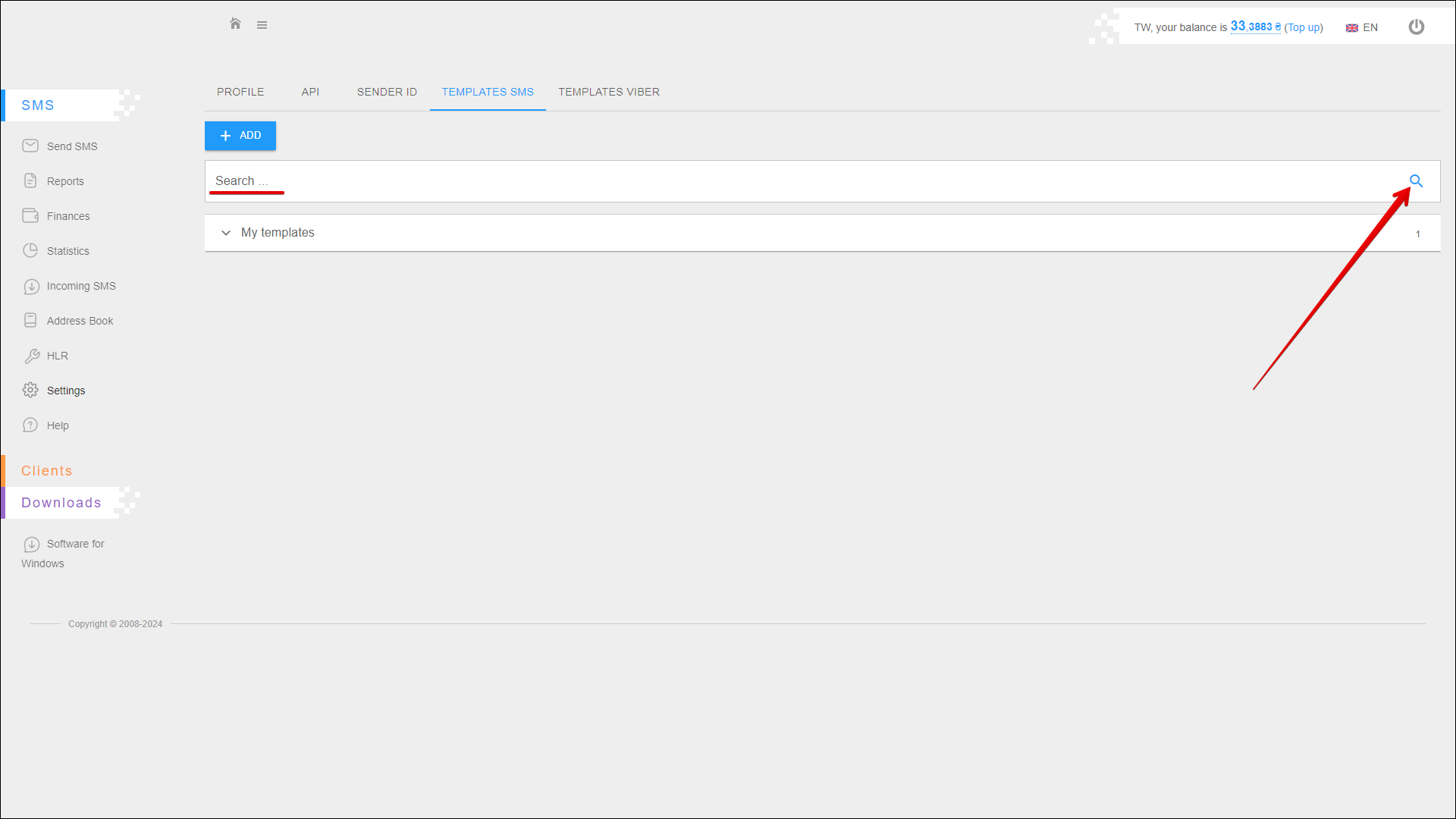
To find the required template, enter its name in the Search field and press the Search button icon or the [ ENTER ] button.
Template list
All added templates are displayed in the My templates list.
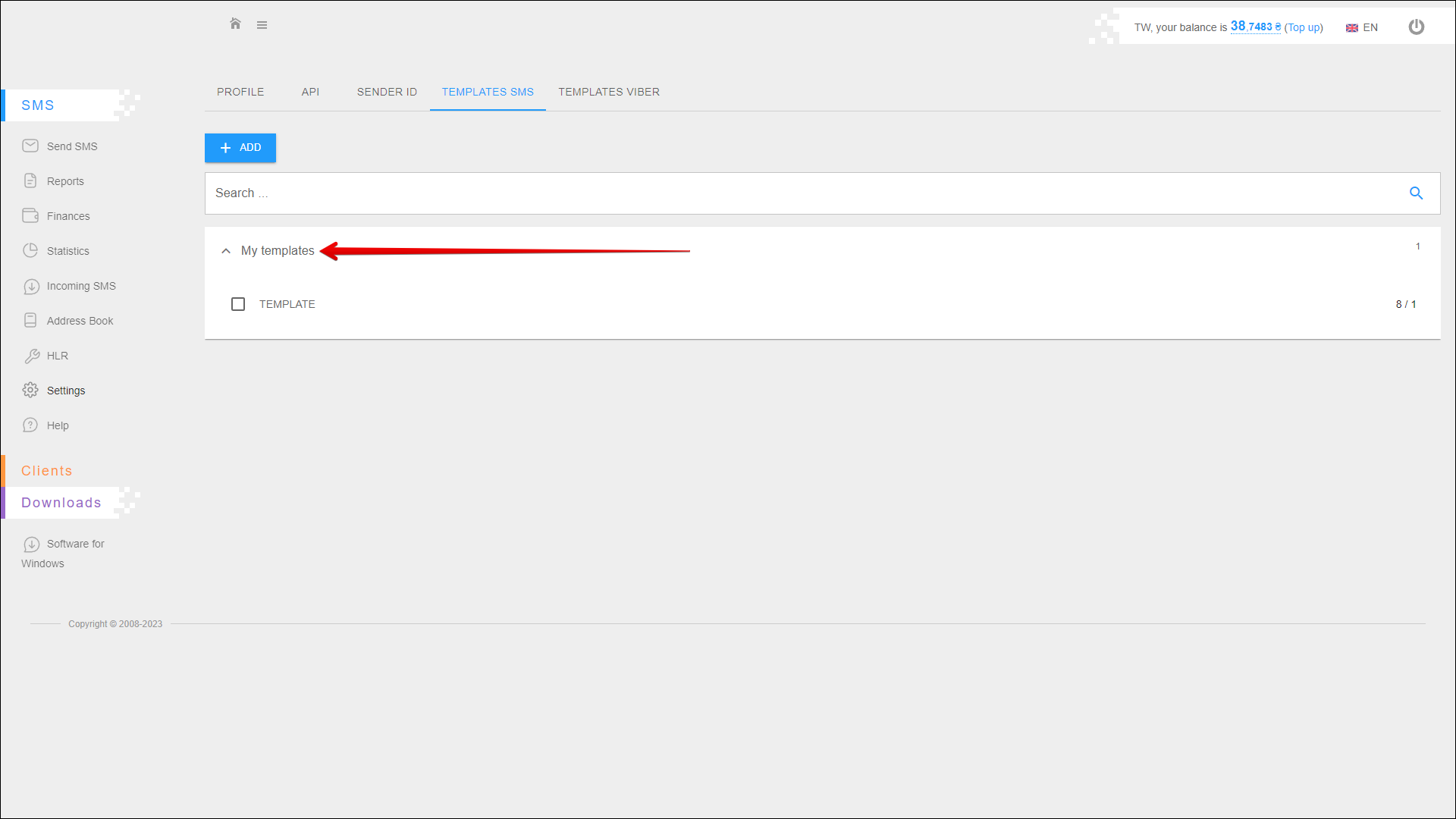
Deleting template
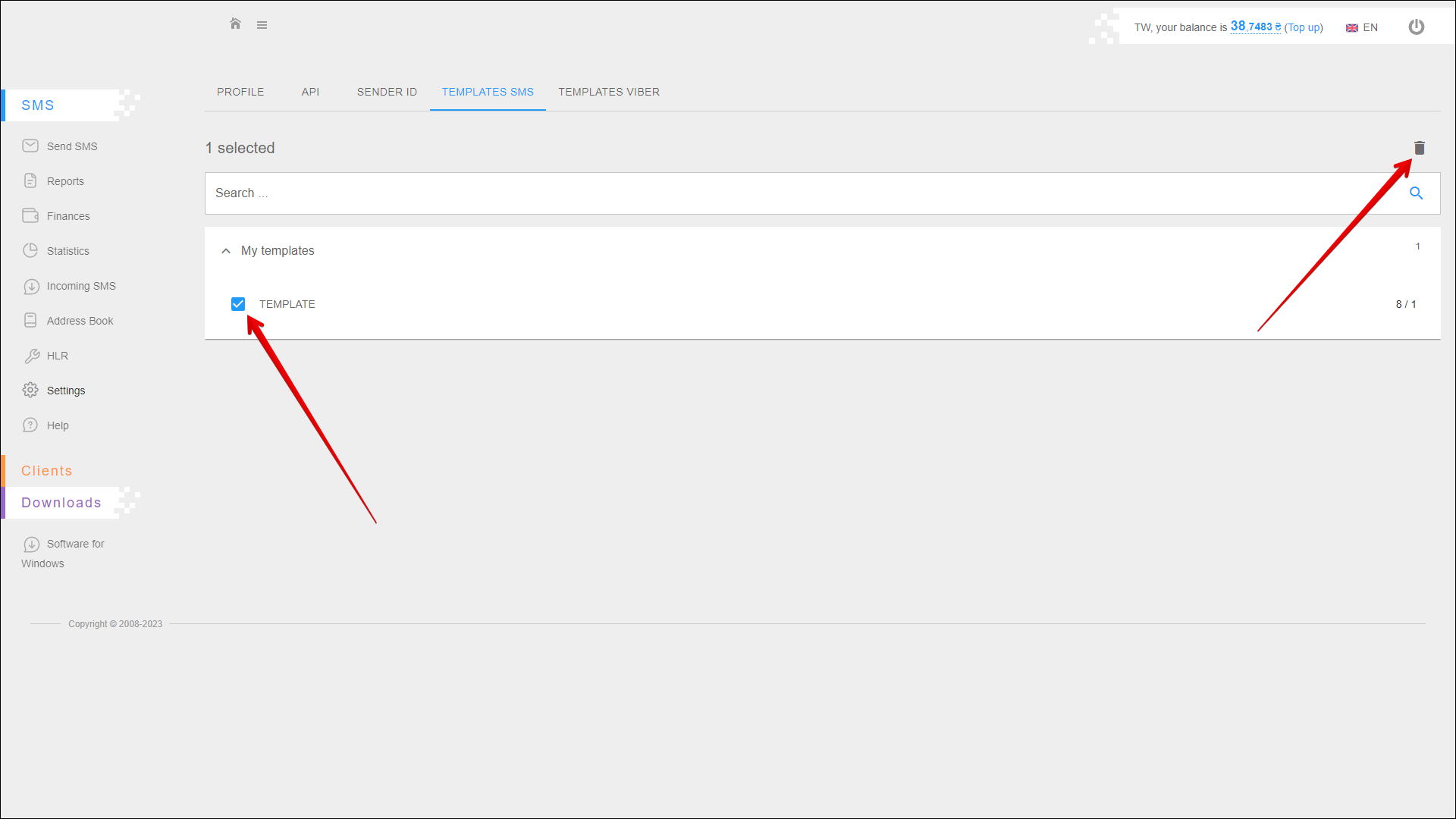
To delete a template, check the checkbox next to the desired template and click the Delete button icon at the top right of the table.